Who is Goldie May & Why Is She So Interested In Helping Me With My Research?
Goldie May is Richard Miller’s great grandmother (Goldie) and a beloved ancestor on his wife’s side of the family (May). Great, now you are asking who is Richard Miller?! Well, Richard is your best genealogy friend in the world (in my humble opinion at least!). He develops software and has worked at numerous genealogy companies using his expertise. That software development and genealogy experience is what gives us Goldie May to help with our research. It keeps everything in one place and you can access it from anywhere you have an internet connection.
I am only going to touch upon what Goldie May can do to help you in the Free “subscription.” To find out everything about it you will need to check out www.Goldiemay.com and watch his videos on YouTube at https://www.youtube.com/@GoldieMay. The best part, aside from all the genealogical help, is that he offers 3 different tiers ~ Free, Plus, and Pro (and a student discount available for the Pro tier!). The Plus and Pro are monthly subscriptions, which is a bonus because you don’t need to lock in for a year if you want to check it out.
Ok, enough talking and let’s get down to business! Goldie May is an extension you can install on your computer (check out his website to see the compatibility).
You do need a www.FamilySearch.org account to be able to use Goldie May to its fullest, but that account is a free account, so if you don’t have one, get one! There is a good reason to need the account too ~ it links beautifully with people on FamilySearch. You can use some of the features with Ancestry currently, but not all just yet.
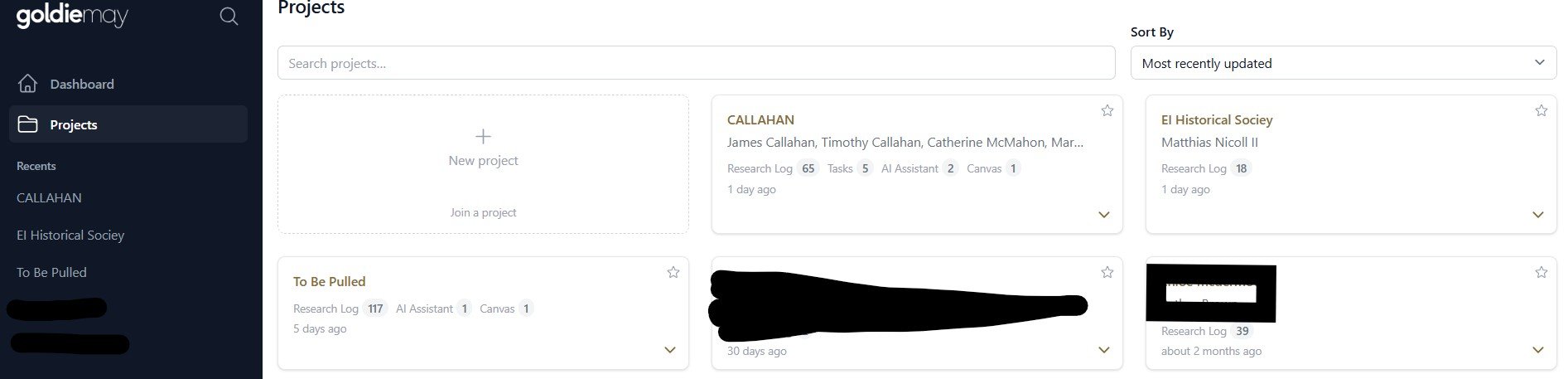
Once you are signed in, you can create a project, such as a family line or my favorite one I call “To Be Pulled” (to pull records only available at the FamilySearch Center). Here is what a piece of my Projects page looks like:
I am going to focus on my Callahan family to show you some of the features available on Goldie May. I just click on the Project labeled Callahan and the page looks like this (keep in mind I have the paid version, so I have circled what the free version has):
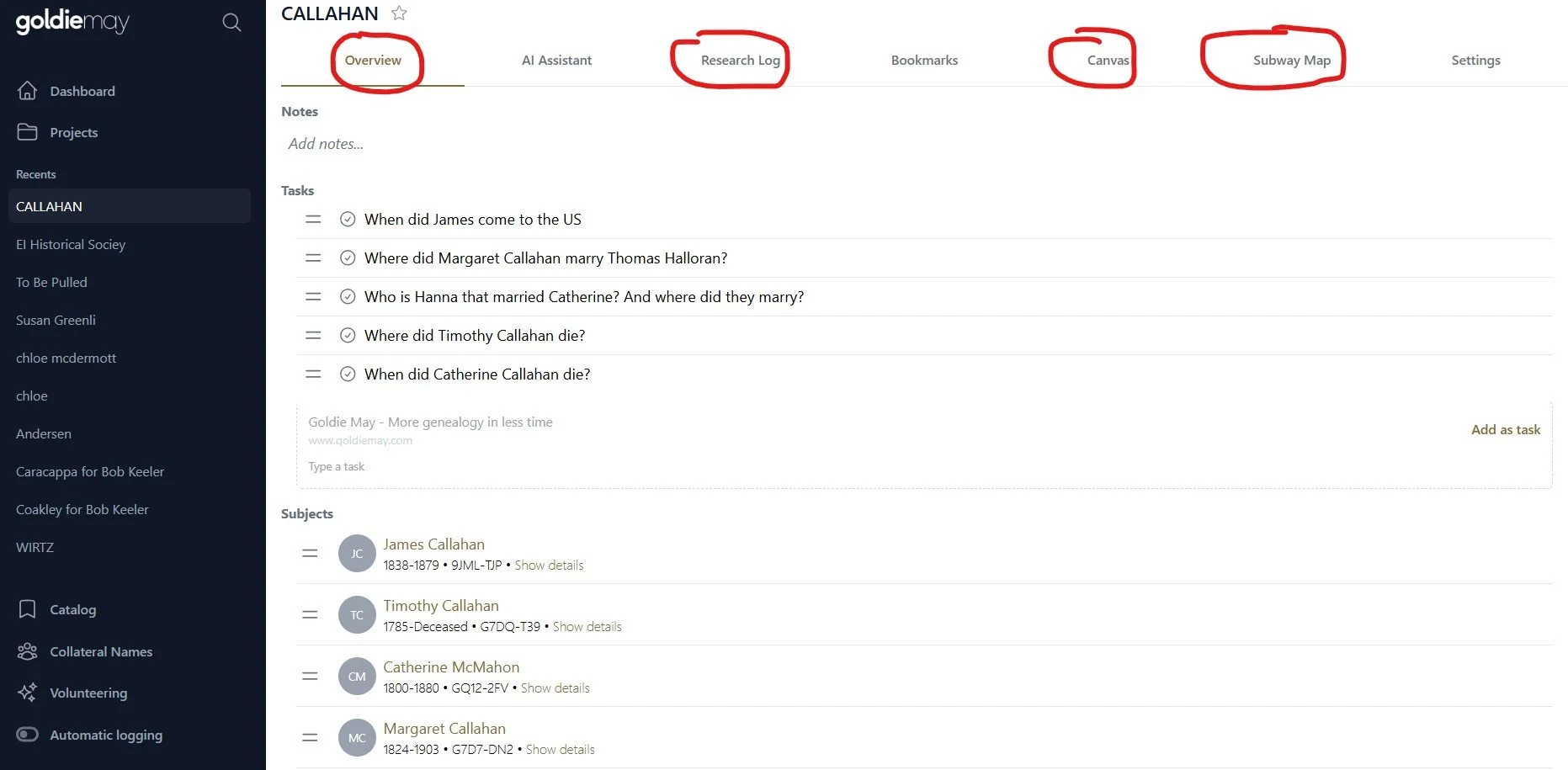
On this Overview page I can type in tasks I want to work on, keeping all my needs in one place. No more sticky notes all over my desk when I am working. You also see names of people you added to the Program Overview page. Let’s take a closer look at one of the names at the bottom of my Subjects:
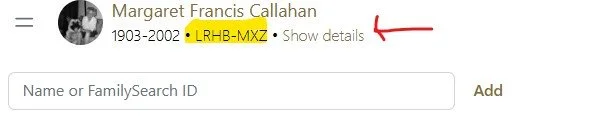
Here is my grandmother, Marge. The ID you see highlighted is the ID generated by FamilySearch. When you want to add a new person, you just copy the ID and paste in the Add box at the bottom and viola, it is added. One advantage of this is that you can quickly go to a person on the FamilySearch tree without having to search for them. There is another feature that can help when you are looking at records. How many times have you had to jump back and forth between a record and the home page of a person to make sure you have the right person. For example, do I have the right Margeret Callahan? Well, who are her children, what are the dates of birth and death? To the right of the highlighted ID is “Show Details.” By clicking on that you get to see that information you have on the FamilySearch tree.
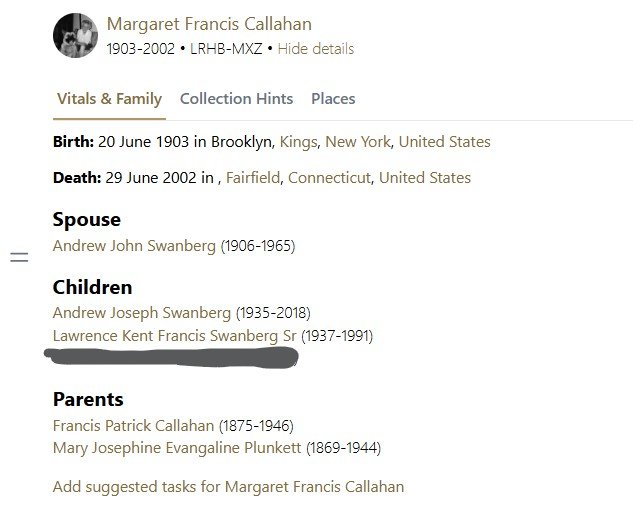
Not bad, huh? And you can also see Places she lived as well as Collection Hints (just what it sounds like, hints you need to check out). But it does not end here. I can use a Research Log to help me.
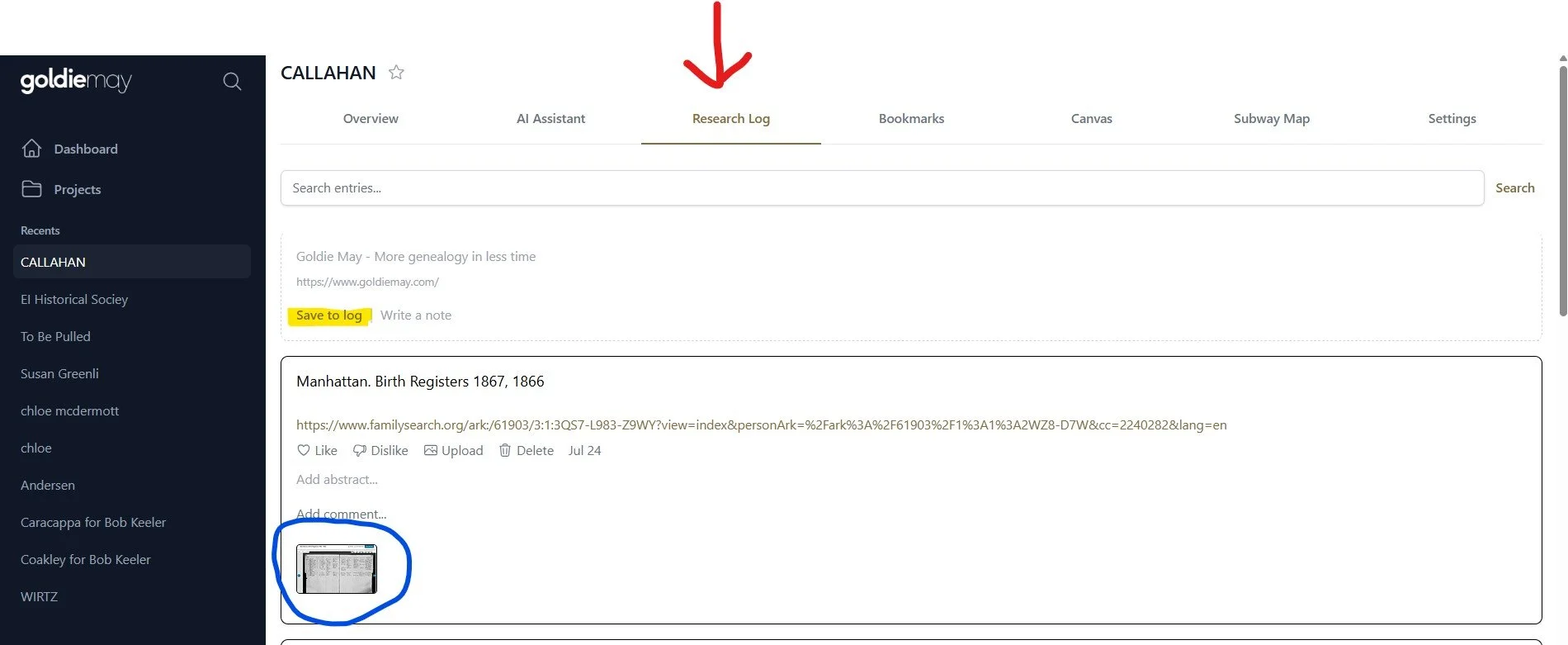
It is very easy to use. When you have a webpage from any source, you can click on “Save to log” (highlighted). It automatically adds the website link to the Research Log. You can add comments at any time. Maybe you want to say what the record is for, or if you are browsing perhaps what page you left off at so you know where to start the next time you go to the site.
Circled in blue is another great feature ~ a screenshot. When you open a website page from the Research log, you can take a screenshot of what you want on the page, and it saves it right on the Research log page (as well as the Canvas).
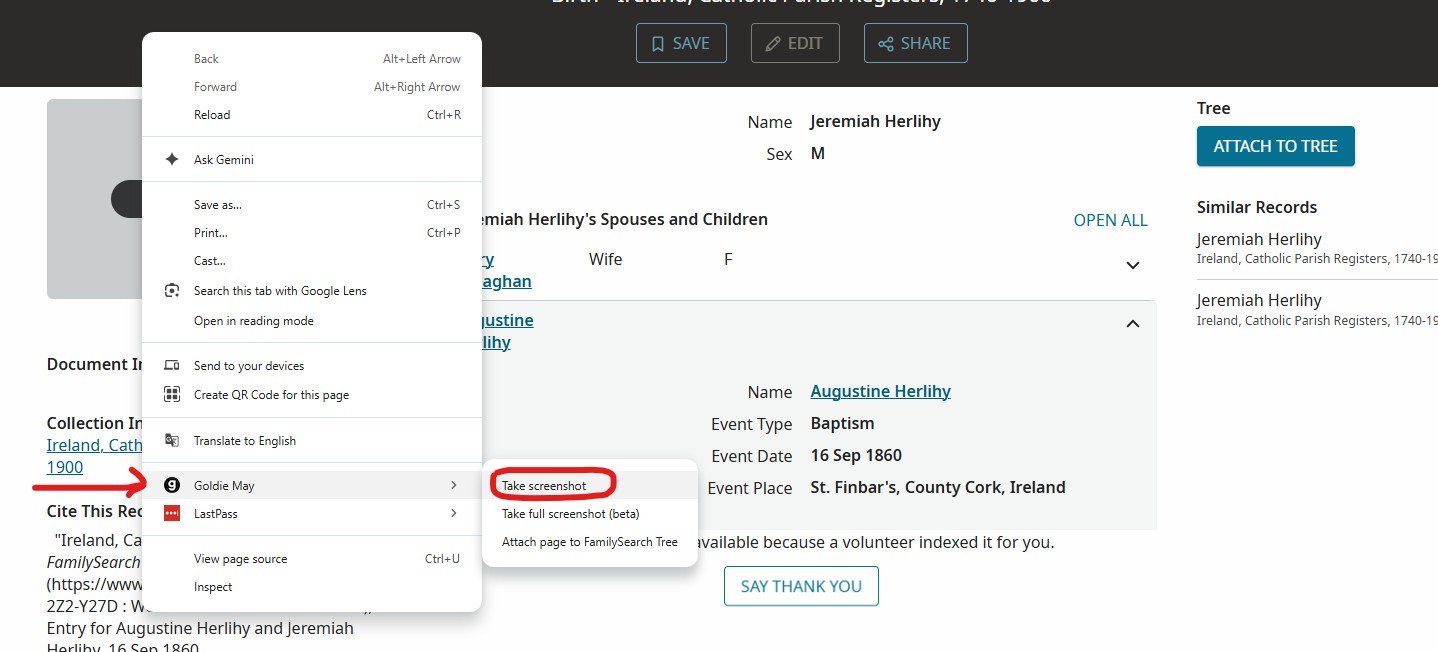
I went to a different logged website page, but that is not important here. You just right click on your mouse, and the larger white box appears. I have put an arrow next to Goldie May; you just hover over Goldie May (the arrow) and the options show up in the smaller box to the right (circled). Click choosing Take screenshot, you can take a screenshot of whatever you want, and it is saved to Goldie May for you. You do see other options which you can use also.
The final option I am going to talk about is the Subway Map. Here is what it looks like for the Callahan family:
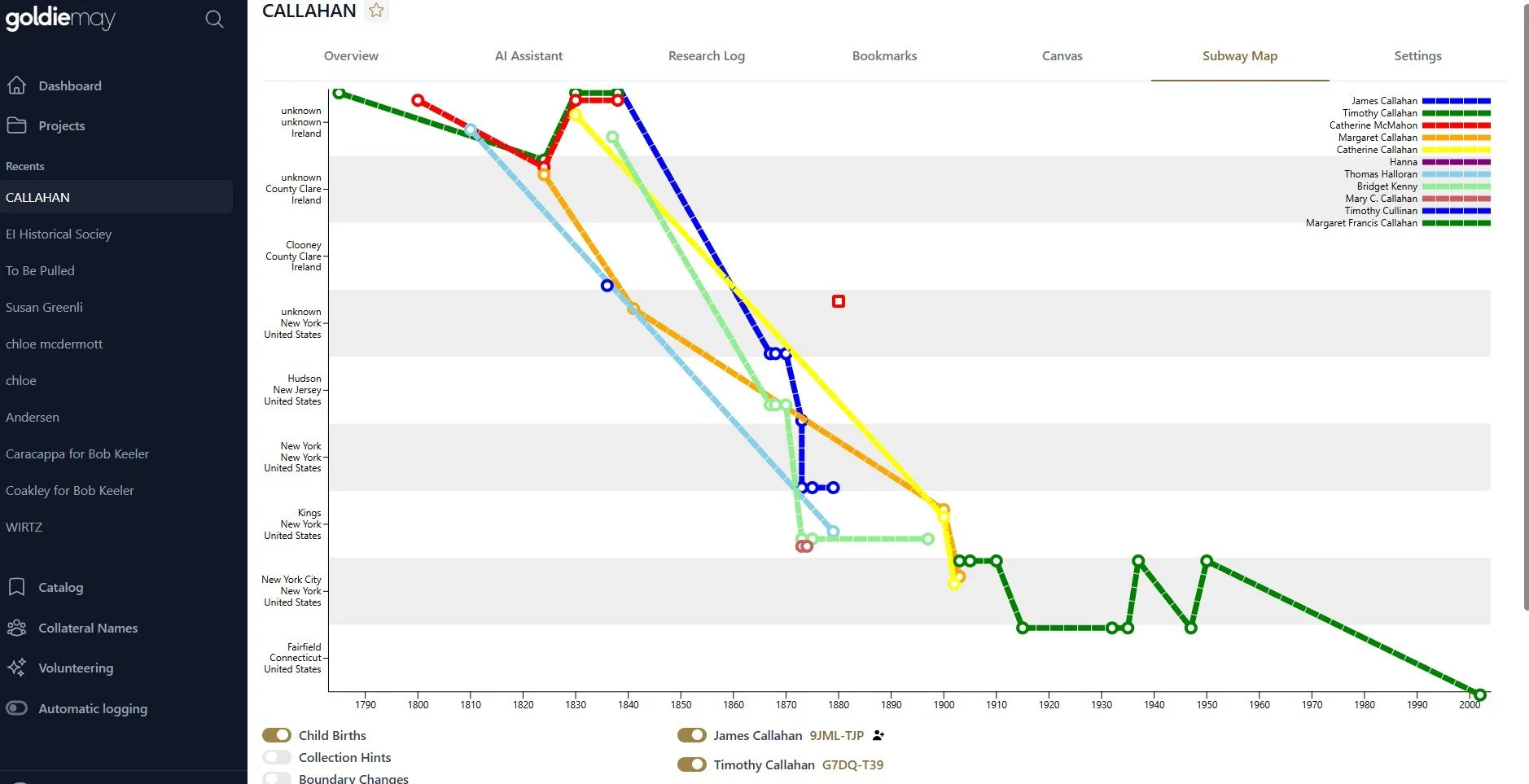
You can see that it looks like a NYC Subway map, hence the name. It shows everyone I put on the Overview page and puts where they lived and the decade on a chart. It is a quick way to see if there is a mistake. If I see a strange jump in a residence, I need to check out my research. Maybe there is wrong residence in the sources because I have the wrong person (those common names can play tricks on us accepting a record or not), or perhaps someone was lazy and did not make sure the correct residence was inputted (can’t tell you how many times I did not check the standardized place name on a site and had bad information). On this chart, it lists residences as Kings, New York and New York City. I need to go back and change them all to Brooklyn since I know for a fact they are all Brooklyn.
I can only highly recommend you check out Goldie May and see if you don’t agree with me that it is a fantastic genealogy tool for your research. It is free after all, so you have nothing to lose in giving it a try. If you are like me, you may end up subscribing when you see what it can do and want to get it all!
*A disclaimer of sorts: I am not receiving any compensation from Goldie May for writing and publishing this article. I just want to make people aware of the resources out that are out there can help you in your research.